DataWedge: send Enter after a scan
The app reads a scan as typed text followed by Enter. Without the Enter, a scan lands in the box and nothing happens. It is one setting in DataWedge, and we will walk you through it.

For Zebra Android devices running Android 5.1 or newer — including a good many scanners people assume are too old. You only need this on the scanners; the portal itself runs in a browser and needs nothing installed.
Will it run on your device? Check in two minutes, with nothing installed: open the browser on the scanner and go to app.stocktakesonline.com.au. If the sign-in page loads, the app will run on that scanner. That tests the one thing that actually fails on an old device — not the app, but whether the device still recognises the security certificate the portal uses, from a list built into it when it was made.
One page to carry out to the racks. It holds the address twice — as a Code 128 a single-line laser can read, and as a QR for an area imager — so nothing has to be typed into a scanner. PDF, 0.2 MB.
Android 5.1 or newer will install. Older than that and it will not — not slowly, not with bugs; the device refuses it outright, which is at least an honest failure.
If yours are older, call us on 0414 53 53 95, tell us your model, and we will find out what the highest version your model supports is. A great many scanners in the field are running whatever they shipped with because nobody had a reason to update them, and the answer is often higher than what is on the device today.

Needs a 2D imager, which every current Zebra has. If it will not read, turn the monitor brightness up and hold the scanner about a hand's width back.
Only a 1D laser? A laser cannot read a screen at all — print this sheet and scan it off the paper instead.

The same address as a 1D barcode — bars and gaps, no squares. If your scanner shoots a red line, this is the shape it reads and the QR above is the one it cannot. It has to be on paper: a laser needs ink, not a screen.
Scan the barcode we sent you, or type the address into the scanner's browser. Downloading it to a PC does not help — the file has to be on the device that will run it.
Android asks whether to allow installing apps from the browser. That prompt is normal for an app supplied directly rather than through a store — say yes, and it only has to be answered once per device.
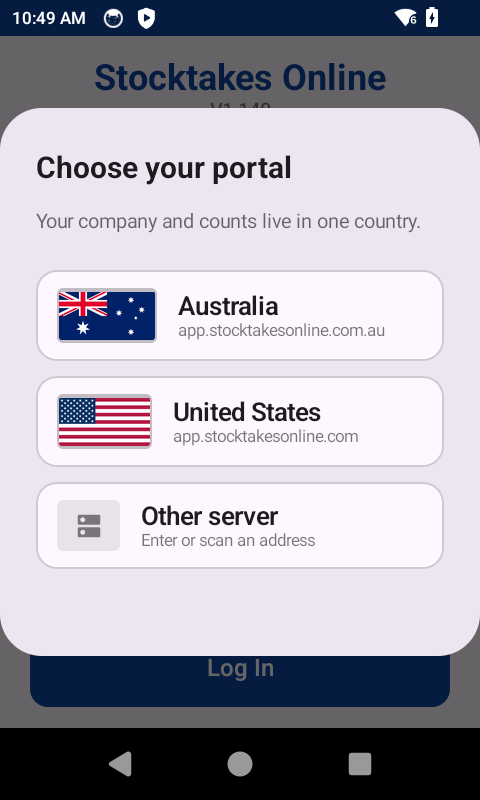
Choose Australia. The app asks once and remembers. The United States is listed because the app is built to reach a second portal without reinstalling a fleet — that portal is not in service yet, and every Australian customer's data is in Sydney. The two are separate databases rather than two addresses for the same one, so a scanner set to the wrong one is told the company does not exist.
The screen that opens the first time, before any login:
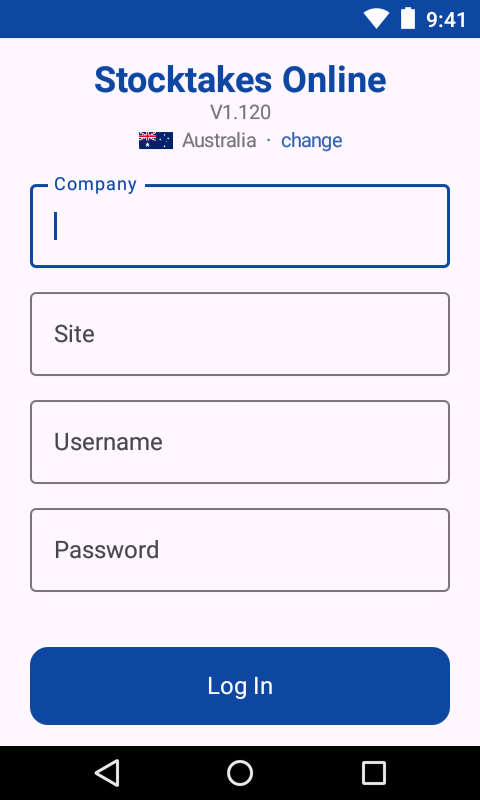
Company, site, username and password, given to you by your administrator. The company and site are remembered so only the username and password are typed each shift.
This is what you should be looking at when it has worked:
Updating is the same as installing. Download the new version over the top and it replaces the old one — nothing is lost, because the device stores nothing. Every count lives on the portal from the moment it is made.
Already have it? The login screen tells you when a newer version is out and brings you here.
The app reads a scan as typed text followed by Enter. Without the Enter, a scan lands in the box and nothing happens. It is one setting in DataWedge, and we will walk you through it.
The app records which scanner made each count, read from the device's own serial number. That needs a permission granted during staging — without it the counts still record, but the device shows as unstaged on the portal.
Settings → Passwords & accounts → Autofill service → None. Android offers to fill in passwords and card numbers on any field it does not recognise, which here means every field — a bin, a part, a quantity. On a scanner screen the panel covers the bottom half, and it turns up exactly when the app is telling an operator why a scan was refused. A new device arrives with it on.
There are three ways to count, and which one a person gets is set on their account rather than on the device — because it is a fact about their hands, not about the hardware.
All three on one form, filled in order and saved. For a device with real keys, where a number is typed without looking down.
Scan the bin, scan the part, then a count screen with large buttons. For a touchscreen with no keypad.
Hold the bin and every scan records one more. For a rail of forty identical things, where typing the count is the slow part.
Ring us. Getting an app onto a scanner should take two minutes, and if it is taking longer than that we would rather hear about it than have you fight it.